Snap-Search is the tool inside Shelf-Snap that looks at a photo of your item and drafts the listing for you — title and description — in a few seconds. You photograph the piece in the app, type the maker or brand if you happen to know it, tap Snap-Search, and either accept the draft or dismiss it. It runs on credits — one per search, and Free accounts get 5 a month to try it. This is the honest explainer: how it works, where it's great, where it isn't, and how to get noticeably better results out of it.
The problem this exists to solve
Here's the actual scene, and if you sell vintage you've lived it. You're sitting on the floor with forty things you sourced this weekend. You pick up an unmarked amber glass bowl. To list it properly you need to know what it IS — the maker, the pattern name, roughly what era, and critically, the words buyers actually type when they're looking for it.
So you open a browser tab. Then another. Then you're in a Facebook group scrolling for someone else's post about the same bowl. Twenty minutes later you have a title. Then you pick up the next item.
Forty items × twenty minutes is thirteen hours. Nobody has thirteen hours. So what actually happens is you write "vintage amber glass bowl," which is a title that will never be found by anyone, and the bowl sits in your BIN shop for eight months.
I built Snap-Search because I was so tired of typing out the same Pyrex descriptions over and over and OVER. That's the whole origin story. It wasn't a roadmap item, it was a grudge.
"But can't I just reverse image search it?"
You can. I did, for years. And I want to be fair to it — Google Image Search is genuinely useful and it's free. But it has three specific limitations that matter enormously for vintage, and once you see them you can't unsee them.
1. You get one photo. One. You're holding a physical object with a shape, a color, a glaze, a weight, a backstamp on the bottom and a foil label on the side — and you get to show the internet exactly one angle of it. The backstamp photo can't also be the shape photo. So you pick, and whichever you pick, you've thrown away the other half of the evidence.
2. It's running against the wild wild west of the internet. It isn't searching a reference catalog. It's searching everything — an eBay listing somebody wrote in 2011, a Pinterest repin with no source, a blog post that copied the Pinterest repin, a Facebook group screenshot. Some of that is expert. Most of it is somebody guessing, confidently, in 2013.
3. And this is the one that actually costs you money: it takes ONE person to misidentify something, and then that mistake lives forever. Someone lists a bowl under the wrong pattern name. It gets indexed. Three other sellers find it while researching their own bowl and copy the title. Now four sources "agree," and the wrong answer looks like consensus. Five years later it's the top result and there is no mechanism anywhere on the internet that goes back and fixes it.
I've watched this happen in real time in collector groups — one misattribution in a popular listing, and eighteen months later people are arguing with the actual reference book because "that's not what it says online."
The internet has no eraser. Reverse image search is reading a room where the loudest voice was a stranger in 2013 who was pretty sure.
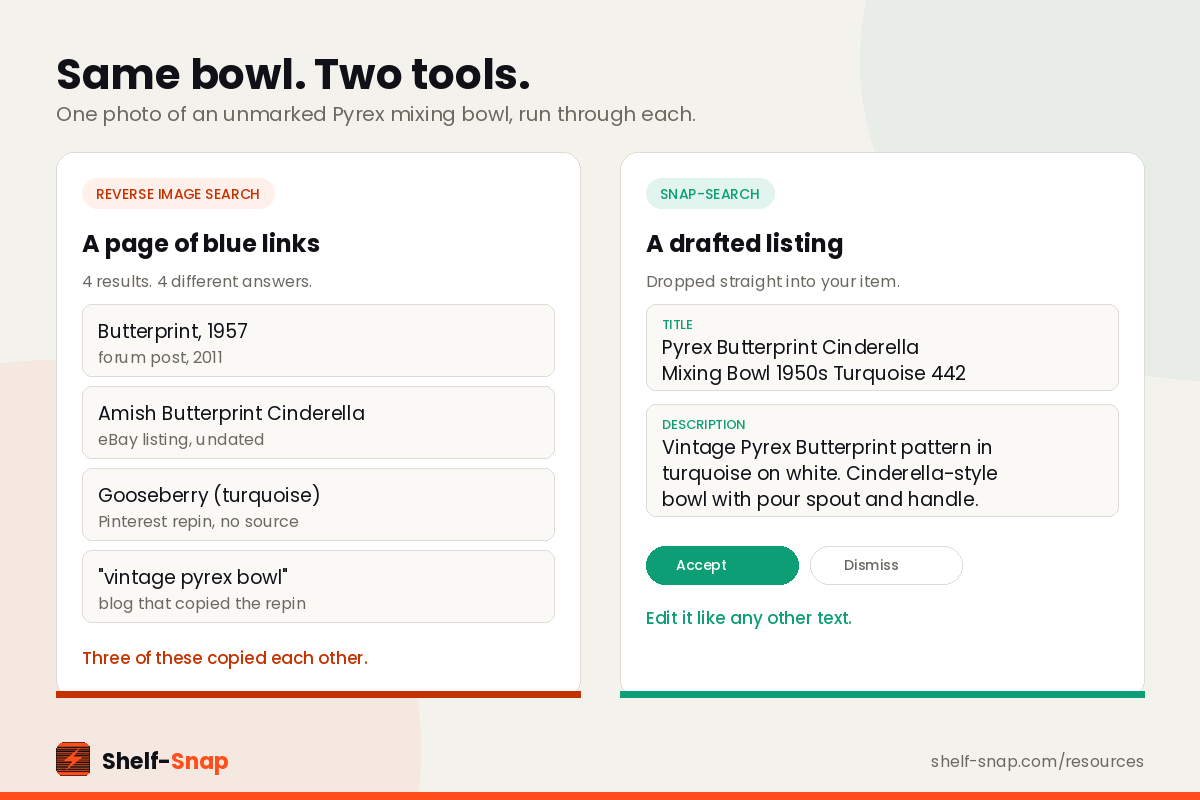
And even when it works, you don't get a listing. You get a page of blue links. You still have to open them, judge which ones are credible, reconcile the two that disagree, and then type a title yourself — in the format Whatnot buyers actually search, with the category and condition you still have to pick separately.
Is Snap-Search magically immune to all of this? No — anything that learned from the internet inherited some of the internet's bad answers, and I'd be lying if I said otherwise. But it's aimed at a much narrower job. It's built for vintage and collectibles specifically. You can feed it what you already know, which reverse image search gives you no way to do. And it hands back a draft sitting in your title and description fields, not forty tabs and a judgment call.
The honest framing: reverse image search is a research tool that makes you do the writing. Snap-Search is a writing tool that does some of the research. Different jobs.
How Snap-Search actually works
It lives right inside the item form, so it's part of the flow you're already in rather than a separate thing you have to go find.
1Photograph the item in the app
Add an item to your batch and take your photos in Shelf-Snap. Snap-Search reads what's in the frame, so what you shoot is what it gets to work with. The backstamp, maker's mark, or maker's stamp is the single most valuable photo you can give it — that's where identification actually lives.
2Type what you already know
This is the step people skip and then wonder why results are mushy. If you know the maker or brand — even partially, even just "Fire King" or "Hall" — type it in before you search. You're not cheating. You're narrowing the field from "every object ever manufactured" down to something answerable, and the difference in the draft you get back is not subtle.
3Tap Snap-Search and take a few seconds
It takes a beat — a few seconds. (I'm working on that, I know, I feel it too.) Then a drafted title and description come back.
4Accept it or dismiss it
You get to decide. Accept and the draft drops into the item's title and description fields, where you can edit it like any other text — trim it, add the chip on the rim that only you can see, put it in your own voice. Dismiss and nothing changes; you write it yourself. Then save, or Save & Add Another, and you're on to the next piece.
The mental model that makes this click: Snap-Search doesn't replace your research. It replaces the blank field. Editing a draft that's 80% right takes forty seconds. Starting from nothing takes twenty minutes. That gap, multiplied across a whole haul, is the entire pitch.
Where it's great, and where it isn't
I'm going to be straight with you, because I'd rather you trust the tool than be oversold on it. Is it perfect every time? No. Vintage is HARD — you all know this better than anyone. Unmarked studio pottery, a backstamp worn down to a smudge, a regional pattern that three people on earth can name: those are hard for a piece of software and they're hard for the seasoned dealer at the flea market too.
What it does well is the large boring middle of your inventory — the marked, cataloged, widely-collected stuff. Named dinnerware patterns. Branded glassware and ceramics. Postcards and ephemera. Trading cards. Funko Pops. For a ton of that, it gets you most of the way there and you just clean it up.
One rule I'd hold onto: never accept a title you couldn't defend to a buyer. If the draft says a pattern name and something in your gut says "I don't think that's right," it probably isn't — edit it. A confidently wrong title is worse than a vague one, because now you've got a dispute instead of a slow sale.
Four things that make results noticeably better
Fill the frame with the item. Not the item plus your kitchen table plus the cat. The more of the photo the object occupies, the more there is to work with.
Get the mark in a photo. Backstamp, maker's mark, foil label, copyright line on the base. This one is worth more than the other three combined.
Type what you know first. Brand or maker — anything you've got. Two seconds of typing for a materially better draft.
Shoot in even light. Harsh shadows and yellow kitchen bulbs distort color and flatten pattern detail. A window works fine.
Why the title is the part worth optimizing
It's tempting to treat titles as admin — the box you fill so you can move on. But on Whatnot your title is doing two jobs at once: it's how buyers find the item, and it's how they decide it's worth bidding on. "Vintage bowl" fails both. "Pyrex Butterprint Cinderella Mixing Bowl 1950s Turquoise" gets surfaced to the person who has been hunting Butterprint for a year and knows exactly what they're looking at.
And it compounds. Items that get found get watched and bid on — and if you're selling live, watching and bidding are the kinds of signals Whatnot's feed appears to care about. Better titles aren't just better for that one bowl.
What Snap-Search costs
Snap-Search runs on credits — one credit per search. Here's the part I want to be clear about, because it's better news than people assume: every account gets 5 credits a month, including Free. You don't have to pay anything to find out whether this works on your inventory. Those five reset monthly rather than rolling over, so use them or lose them.
Shelf-Snap Pro — $9.99/month or $107.99/year — includes a monthly credit allowance on top of unlimited templates, 8 photos per item, unlimited exports, custom numbering, and Team mode. And anyone at any tier can buy credit packs: the standard bundle is 100 credits for $6.99, or if you're just starting out, the Starter Pack is 75 credits plus 2 bonus exports for your first month — $4.99. Purchased credits never expire, so nothing is wasted if you take a month off.
The math I'd actually run: sellers using Shelf-Snap consistently report cutting listing time roughly in half, and the title-and-description part is a big chunk of what's left. One extra sale covers the month.
Where it fits in the whole flow
Snap-Search is step five of a six-step loop, and it's worth seeing it in context: build or pick a template so category, condition, and shipping fill themselves in, start a batch for your haul, add your items, fill in the details and photos, run Snap-Search for the title and description, then export a Whatnot-ready CSV and import it.
Templates kill the repeat work on the structured fields. Snap-Search kills the repeat work on the words. Between them there's very little left to type. The full walkthrough with screenshots is in Getting Started with Shelf-Snap, and if the CSV import is the part that scares you, that has its own guide too.
Snap-Search FAQ
What is Snap-Search in Shelf-Snap?
Snap-Search is a visual research tool built into the Shelf-Snap iPhone app for vintage and collectible sellers. You photograph an item inside the app, optionally type the maker or brand if you already know it, and tap Snap-Search. In a few seconds it tries to identify the item and drafts a listing title and description you can accept or dismiss. It runs on credits: one credit per search. Free accounts get 5 credits a month, use-it-or-lose-it. Pro includes a monthly credit allowance, and anyone can buy credit packs that never expire.
How do I use Snap-Search?
Add an item to a batch in Shelf-Snap and take your photos in the app. If you know the maker or brand, type it into the field first — it meaningfully improves the result. Then tap Snap-Search. After a few seconds a drafted title and description appear, and you either accept them onto the item or dismiss them and write your own. Then save the item and move to the next one.
Why not just use Google reverse image search to identify vintage items?
Reverse image search is useful and free, but it has three limits that hurt on vintage. You can only submit one photo, so you have to choose between showing the shape and showing the backstamp. It searches the open internet rather than a reference catalog, so an expert's page and a stranger's 2013 guess carry the same weight. And a single misidentification propagates permanently — one wrong listing gets copied by other sellers, and the error starts to look like consensus with no mechanism to correct it. You also get a page of links rather than a listing, so you still do all the reading, judging, and writing yourself.
Is Snap-Search accurate for vintage items?
It is genuinely useful, and it is not magic. Vintage is hard — unmarked pottery, worn backstamps, and regional patterns trip up any identification tool, human or otherwise. What Snap-Search reliably does is get you most of the way there on the large middle of your inventory, so you are editing a draft instead of starting from a blank field. Treat every result as a draft to verify, not a fact to publish, and never accept a title you could not defend to a buyer.
Does Snap-Search cost extra?
Snap-Search runs on credits — one credit per search. Every Shelf-Snap account, including Free, gets 5 credits a month to use, though those reset rather than roll over. Shelf-Snap Pro ($9.99/month or $107.99/year) includes a monthly credit allowance on top of everything else in the tier. You can also buy credit packs at any tier: the standard bundle is 100 credits for $6.99, and new sellers can start with the Starter Pack — 75 credits plus 2 bonus exports for your first month, $4.99. Purchased credits never expire.
How do I get better Snap-Search results?
Four things move the needle most. Fill the frame with the item instead of the table it is sitting on. Photograph the backstamp, maker's mark, or maker's stamp — that is where identification actually lives. Type in whatever you already know before you search, even just a brand. And shoot in even light so patterns and colors read true.
Why do listing titles matter so much on Whatnot?
Your title is how buyers find the item and how they decide it is worth bidding on. A title with the maker, pattern name, and the words buyers actually search gets surfaced and clicked; a title that says “vintage bowl” does not. Getting the identification right is not a nicety — it is the difference between an item selling and an item sitting.
Can I edit what Snap-Search writes?
Yes, always. The drafted title and description land in the normal item fields, so you can edit them like anything else — trim the title, add the condition detail only you can see, drop in your own voice. Nothing is locked.
Does Snap-Search replace doing my own research?
No, and it is not meant to. It replaces the repetitive part — retyping the same Pyrex description for the fortieth time, opening four browser tabs to remember a pattern name. The judgment calls (condition, rarity, what to actually charge) are still yours, and they are the part that makes you good at this.
What kinds of items does Snap-Search work best on?
Marked, cataloged, widely-collected things do best: Pyrex and other named dinnerware patterns, branded glassware and ceramics, postcards and ephemera, trading cards, and Funko Pops. Unmarked studio pottery, handmade one-offs, and heavily worn pieces are the hardest cases — that is where typing in what you already know helps most.
Photograph it. Let Snap-Search write it up.
Templates for the fields, Snap-Search for the words, auto-numbering for the order, and a Whatnot-ready CSV at the end. Free to download on iPhone — and every account gets 5 Snap-Search credits a month, so you can try it before you decide anything.
Download Free